How to order food on Suki Neighbors
From finding your building's community to rating your first order, here is the whole buyer journey. Ten minutes to read, one minute to actually do.
Updated July 8, 2026 · By the Suki Neighbors team
What you need
A phone and a browser. Suki runs as a web app, so there is nothing to download from an app store. You can browse and order as a guest; an account (email or Google) is optional but makes checkout faster and keeps your order history in one place.
Step 1: Find and join your community
Suki is community-locked: every marketplace belongs to one condo, village, or barangay, and you shop where you live. Three ways in:
- 1
- 2
Use a neighbor's invite link
Someone shared a Suki link in your group chat? Tap it. Private communities attach an invite code to the link, so joining is one tap even when the community is hidden from search. - 3
Request to join a private community
If a community is private and you have no code, open its page and tap Request to join. The manager approves you, and the app lets you in automatically.
You can join up to 3 communities - say, your condo, your parents’ village, and your office building. Your feed combines all of them.
Step 2: Browse today’s benta
The feed shows what neighbors are selling right now. Everything you see was posted within the last 12 hours - listings expire after that, so there are no ghost posts from last month. If you see it, meron pa.
- Filter by category chips: ulam, merienda, dessert, and more.
- Sold-out items hide by default; flip the toggle if you want to see them.
- A green New badge means it was posted in the last 30 minutes.
- Boosted listings sit at the top for a while; the gold card is the community’s Featured Store.
- A red S badge marks stores you follow.
Step 3: Check the item
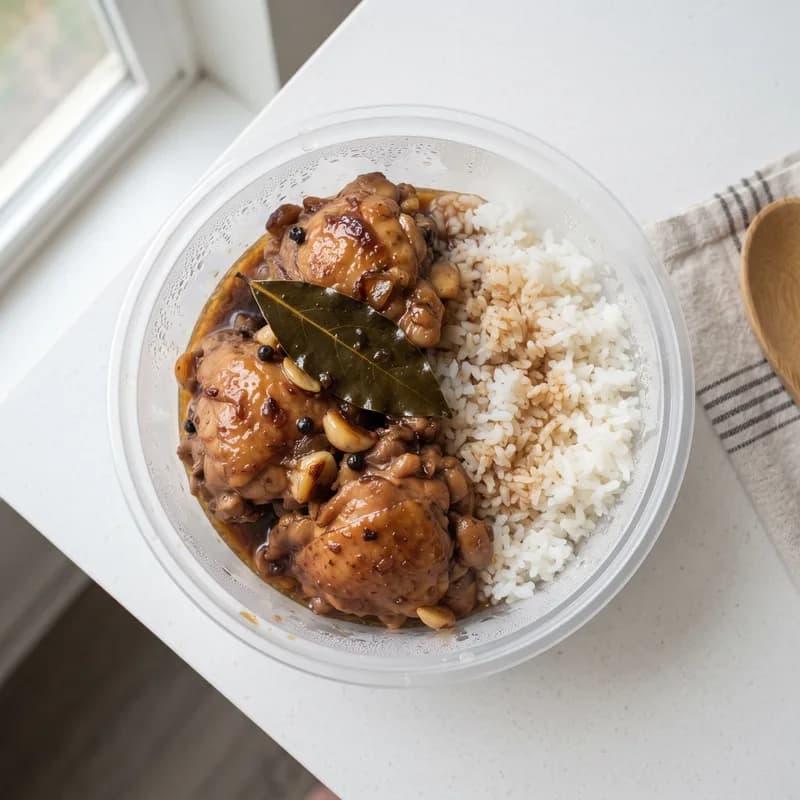
Tap a listing to see the full photo gallery (up to 4 shots), the price, how many are left, and the seller’s profile - their other benta, their rating, and replies to past reviews. Stock is live: if it says 3 left, that number is counting down in real time as neighbors order.
Step 4: Cart and checkout
Your cart holds items from one seller at a time (each seller preps and delivers their own orders). A progress bar shows how close you are to the seller’s free-delivery minimum, if they set one.
At checkout you choose:
- When: ASAP, scheduled up to 7 days ahead (great for pre-orders and party trays), or pickup from the seller.
- Where: your unit or address - hidden entirely if you picked pickup.
- How to pay:one of the seller’s methods - GCash, Maya, bank transfer, or cash on delivery. You pay the seller directly; Suki never holds your money.
Signed in? The order confirms instantly and your details prefill. Checking out as a guest? You confirm the order by tapping the link we email you - that is what tells the seller the order is real, and it doubles as your sign-in.
Step 5: Track your order
Every order has a live tracking page: pending payment, confirmed, prepping, on the way, delivered. You also get:
- The seller's contact number with tap-to-call, in case you need them
- A Nudge button if things feel quiet (one nudge per 10 minutes)
- Pay-now details with the seller's QR code, plus a receipt upload so they can confirm your payment
- A switch-payment-method button while the order is still pending
- Cancel with a reason while the order is pending or confirmed - stock goes back automatically
Turn on notifications when the tracking page offers them and your phone pings at every status change. On iPhone, install Suki to your home screen first (Share, then Add to Home Screen) - iOS only allows push for installed web apps.
Step 6: Rate your suki
After delivery you have 24 hours to leave a rating - one per order, buyers only. Ratings are the community’s trust system: they show on the seller’s store, and sellers can reply publicly. Good sellers become everyone’s suki; that is the whole point.
Level up your buying
- Follow stores. Tap Follow on a seller you love and get a push the moment they post new benta. Followed stores wear the S badge in your feed, and the Following tab filters to just them.
- Notify me on restock. Sold out? Tap the bell on the listing and you are alerted when it comes back.
- Install the app. Add Suki to your home screen and it opens instantly, full-screen, like any app.
- Your orders, one place. My orders keeps history and live tracking; the account page saves your name, unit, and address so checkout is two taps.
Common questions
Do I need an account to order?
No. You can order as a guest - you just confirm the order through the link emailed to you. An account (email or Google) makes checkout instant and syncs your details across devices.
Is paying safe? Where does my money go?
You pay the seller directly - GCash, Maya, bank transfer, or cash on delivery. Suki never holds your money and adds no fees on top. You can see the seller's ratings and badges before you order, upload your payment receipt on the order page, and the community manager moderates sellers who misbehave.
How much is delivery?
Each seller sets their own delivery fee - many charge nothing since you live in the same building. Sellers can also set a free-delivery minimum, and pickup is always free.
Can I cancel an order?
Yes, while it is still pending or confirmed - you give a short reason, the seller is notified, and any tracked stock is restored. Once the seller is prepping, coordinate with them directly via the call button.
Why did a listing disappear from the feed?
Listings expire 12 hours after posting so the feed only ever shows food that is actually available today. The seller can relist in one tap, and you can tap Notify me to hear about it.
How do private communities work?
Private communities do not appear in search and need an invite code to enter. Get the code from a neighbor's invite link, or open the community page and tap Request to join - the manager approves you from their side.